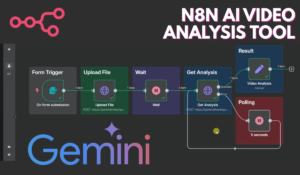
This article will help you build a n8n video analyzer automation system using Google Gemini and n8n that can summarize, interpret, and describe videos—either uploaded from your computer or fetched directly from YouTube. It’s a powerful way to understand video content automatically without any coding.
You can download the full JSON template from this article and import it straight into n8n.
What This n8n Video Analyzer Workflow Does
This automation allows you to:
- Upload videos directly or use a YouTube link.
- Send the video to Google Gemini API for analysis.
- Wait and poll until processing is complete.
- Automatically generate a text-based summary of the video.
- Display detailed video descriptions or transcripts as output.
Essentially, this builds an automated video understanding system that can describe what happens in any video — like a human watching and summarizing it.
Step-by-Step Workflow
Step 1: Log Into n8n
Open n8n, go to your main dashboard, and click Import Workflow.
Choose the attached JSON template file.
Download JSON File: Click Here
Step 2: Open the Form Submission Node
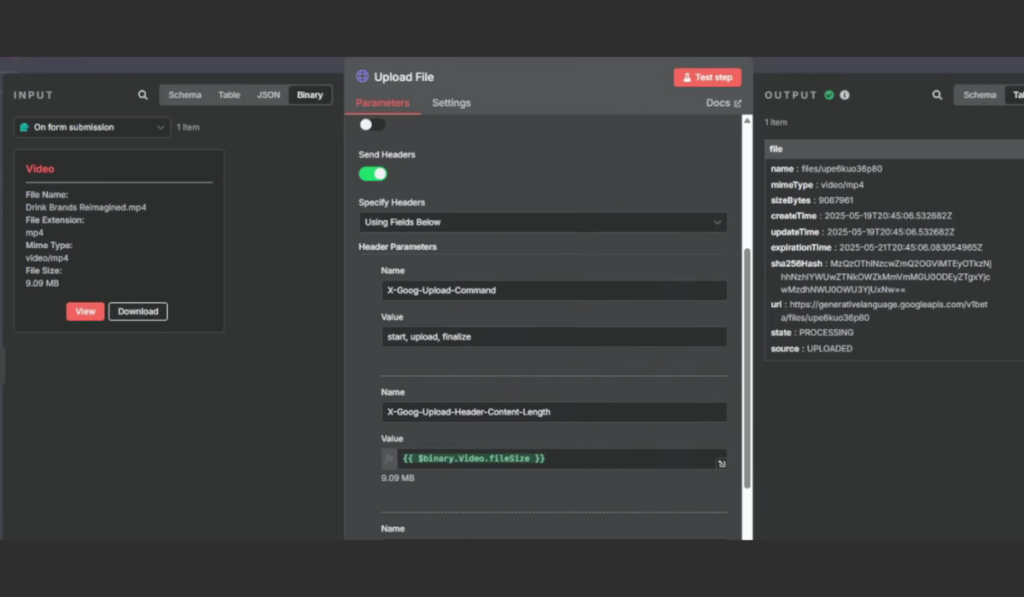
The Form Trigger node lets you upload a video.
When you execute the workflow, a small form appears where you can drop in the file.
Form Fields:
- Video (required upload field — accepts
.mp4,.mov,.webm, etc.)
Step 3: Upload the Video to Gemini
After submission, the Upload File node sends the video to Gemini using HTTP.
This step includes setting up the upload headers — like file size, type, and name.
Technical fields (already included in template):
- Endpoint:
https://generativelanguage.googleapis.com/upload/v1beta/files - Authentication: Gemini API key (provided through a Google Developer account).
Step 4: Wait 5 Seconds
Once uploaded, the workflow pauses for 5 seconds using the Wait node.
This delay ensures Gemini has enough time to start processing before requesting analysis.
Step 5: Get the Analysis
The Get Analysis node sends a POST request to Gemini’s content generation model to analyze the uploaded video.
Key settings in the JSON body:
json{
  "contents": [
    {
      "role": "user",
      "parts": [
        { "fileData": { "fileUri": "{{ $json.file.uri }}", "mimeType": "{{ $json.file.mimeType }}" }},
        { "text": "Describe what's going on in the video in great detail." }
      ]
    }
  ]
}
This makes Gemini return a detailed description of every event, person, or scene inside the video
Step 6: Polling for Video Completion
Sometimes the video takes longer to process. This is why the workflow includes a polling loop — repeatedly checking if the video analysis is complete.
Without polling, the workflow might try to get a response before Gemini finishes analyzing
Step 7: Extract and Format the Results
After Gemini finishes, the output text is retrieved using the Set node.
This step organizes the text and sets it as “Video Analysis Result.”
The summarized insights include:
- Scene-by-scene breakdowns
- Detected subjects and actions
- Backgrounds, moods, and narration cues
Step 8: Analyze YouTube Videos
The workflow can also analyze YouTube videos directly — no download needed!
The node titled “YouTube Video” sends a video link to Gemini, which analyzes not just the visuals but also audio and text content.
You can adjust the prompt here — for example:
- “Summarize this video in 3 sentences.”
- “List key takeaways from the video.”
- “Describe the main topics covered.”
Step 9: Retrieve the Final Output
The Get Results node collects Gemini’s reply and outputs the summary text.
Step 10: Review or Save the Analysis
Once done, you can view the full textual result inside n8n.
You could also extend the workflow by:
- Sending results to Google Sheets
- Emailing a report
- Creating summaries for YouTube videos in bulk
ALSO READ:
FAQs
What does this workflow do?
It analyzes video content using Google’s Gemini model. You can upload videos or paste YouTube URLs to automatically get a detailed description of everything happening in the video.
Do I need coding knowledge?
No. The workflow is fully visual and only needs your Google API key to work.
How do I get my Gemini API key?
Visit Google AI for Developers and sign in to create your free API key under the Developers section.
Can this workflow work on long videos?
Yes, though larger files take more time. The polling loop ensures Gemini finishes processing regardless of video duration.
Can I modify the output?
Absolutely. You can change the prompt message in “Get Analysis” node — for instance, make Gemini summarize in 5 points or generate short bullet highlights.
Can it analyze different file formats?
Yes, it supports MP4, MOV, and WebM formats by default.