This tutorial guides you through building a Viral AI Video Generator using Google’s Veo 3 model and n8n — an amazing no-code automation platform. The workflow lets you create cinematic, first-person AI videos in viral social media formats (like TikTok or Instagram Reels) automatically.
You can download the JSON template down below from this article and import it into your own n8n instance to start generating Veo 3 videos right away.
What This n8n AI Video Generator Workflow Does
This automation combines Google Sheets + OpenAI (ChatGPT) + FAL AI Veo 3 API inside n8n to produce AI videos in a hyper-realistic vlog style.
It automatically:
- Reads project ideas (or scenarios) from a Google Sheet
- Generates cinematic Veo 3 video prompts using GPT-4
- Sends them to FAL AI to generate complete videos
- Saves the video links and captions back to Google Sheets
Essentially — it automates the entire AI video creation pipeline.
Step-by-Step Workflow Guide
Step 1: Log Into n8n
Sign in to your n8n workspace.
Go to “Workflows” → click “Import” → upload the Veo 3 JSON Template (attached).
Download JSON File: Click Here
Step 2: Add the Manual Trigger Node
This is where your workflow starts.
The Manual Trigger lets you start the workflow manually whenever you want to generate videos.
Step 3: Connect Google Sheets
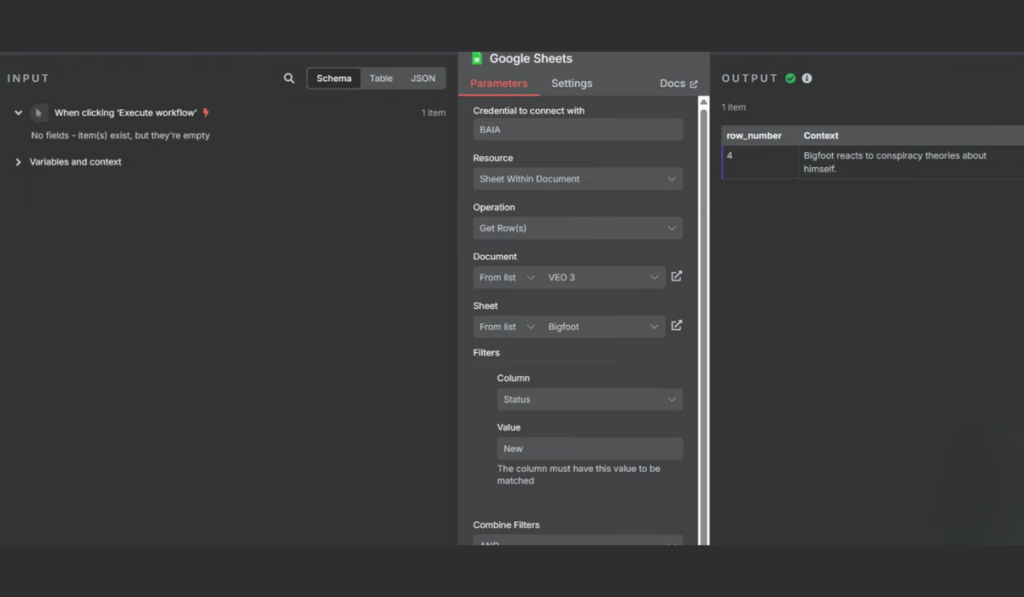
Your workflow first pulls data from a connected Google Sheet that stores ideas for videos (e.g., “Bigfoot tries to start a forest podcast”).
Each row in the sheet contains:
- Context: the video idea
- Status: set to “New” for processing
- Title, Caption, and URL (auto-updated later)
When you run the workflow, it fetches the next “New” row for the next movie idea.
Step 4: Create the Prompt Agent Node
This is the brain of your automation.
The Prompt Agent uses your GPT-4 model to turn simple ideas into structured cinematic Veo 3-ready prompts.
The agent follows rules to ensure:
- The video is always first-person POV (selfie-style)
- The tone is funny, cinematic, and realistic
- Scenery, lighting, dialogue, and motion are clearly described
Example:
Short idea: “Bigfoot reacts to being called blurry”
Agent output:
- Title: Bigfoot Clears Up the Rumors
- Caption: “It’s not me, it’s your camera. 🐾📱 #Bigfoot #AIGenerated”
- Prompt: Full Veo 3-style cinematic breakdown (camera, tone, background, POV, action).
Step 5: Run the Generate Video Node
Once the prompt is ready, the next node — HTTP Request (Generate Video) — sends the full structured prompt to FAL AI’s Veo 3 API endpoint.
This creates a request queue for the AI model to generate the video.
The workflow follows this chain:
- Sends API request → waits → checks generation status
- Once finished, it retrieves the download link (video URL)
Step 6: Wait and Check Video Status
After sending a video generation request, the workflow enters a “wait-and-poll” loop:
- The Wait Node pauses for about 15 seconds
- The Check Video Status node checks if the video rendering is complete
- If still “In Progress,” it loops again until status = “Completed.”
This ensures every video is properly fetched once ready.
Step 7: Retrieve and Save Video Details
When the generation finishes, n8n automatically saves the results:
- Video title from GPT
- Social media caption
- Download URL
- Status updated to “Generated”
Everything is neatly written back into your Google Sheet.
Step 8: Preview and Publish
You can now:
- Click the generated video link from Google Sheets
- Download or upload it to social media
- Optionally, schedule posts using another n8n flow (for TikTok/Instagram auto-publishing)
Congratulations — your AI video generator is live!
ALSO READ:
FAQs
What is Veo 3?
Veo 3 is Google’s AI video creation model that produces realistic cinematic videos from text prompts.
How do I get FAL API keys for Veo 3?
Create a free account at fal.ai, go to your dashboard, and generate an API key.
Can I customize the video ideas?
Yes. Simply add your ideas to the Google Sheet with “Status: New” and run the workflow to generate each video.
Can I use it for TikTok or YouTube Shorts?
Yes. The workflow uses a 9:16 aspect ratio by default, perfect for short-form platforms.
Can it generate videos for free?
There’s a cost through FAL, but the tutorial also includes a Google Flow method to get Veo 3 videos for free with trial credits.
How long does each video take to generate?
Usually, 2–3 minutes, depending on Veo 3 model speed and video length.